Monday, 27 April 2015

Sunday, 26 April 2015

Mendeley Suggest: apakah itu?

Mendeley Suggest
Mendeley Suggest is the most advanced filter for academic literature we've built yet. It suggests new papers based on your library and what similar researchers are reading.

Mendeley menentukan artikel/dokumen yang disarankan dengan melihat pola mencari, menambah, menghapus data yang dilakukan pengguna Mendeley.

MS dapat dilihat pada panel sebelah kiri, dengan tulisan Mendeley Suggest. Setelah diklik, maka pada layar utama akan muncul artikel beserta informasinya, serta pilihan Accept | Remove. Jika klik accect maka artikel akan masuk dalam aplikasi Mendeley.Selain itu terdapat pula informasi jumlah pembaca artikel yang tersebut.

Saturday, 25 April 2015

, , ,

Omeka : open source web publishing

Omeka is a free, flexible, and open source web-publishing platform for the display of library, museum, archives, and scholarly collections and exhibitions. Its “five-minute setup” makes launching an online exhibition as easy as launching a blog.

Pengembang Omeka
 Satu lagi aplikasi yang memudahkan pustakawan dalam mengelola koleksinya. Bahkan bukan hanya pustakawan, namun juga ilmuwan, pengelola museum, arsiparis, pendidik serta pihak lain. Pengambangan Omeka dibawah koordinasi Roy Resenzweih CHNM, sama seperti pengembang Zotero.


Salah satu manual Omeka dapat dilihat di klik
Pada database DOAR, omeka digunakan 4 repository. Tidak sepopuler DSpace dan Eprints, namun mari kita tengok spesifikasi Omeka ini.
omeka di DOAR

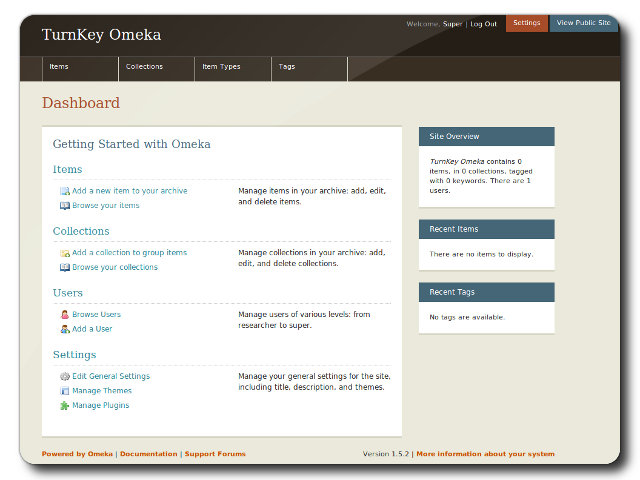
Tampilan Dashboard Omeka http://www.turnkeylinux.org
Web Omeka menyebutkan spesifikasi instalasi Omeka sebagai berikut:
  •       Linux operating system
    • Server configuration suggestions
  •     Apache HTTP server (with mod_rewrite enabled)
  •     MySQL version 5.0 or greater
  •     PHP scripting language version 5.2.11 or greater (with mysqli and exif extensions installed)
    •     PHP version 5.3+ or the Fileinfo extension is highly recommended
  •     ImageMagick image manipulation software (for resizing images)
Dengan spek php dan mysql,  maka secara kasat mata dapat diprediksi pada aspek instalasi dan maintenance aplikasi ini lebih mudah daripada aplikasi lainnya.

Latihan Mendeley ing Ngayogyokarto

Minongko Advisor Mendeley, kawulo pikantuk wekdal mbagi kawruh babagan Mendeley. Mendeley meniko salah satunggaling aplikasi kangge para siswa supados gampil anggene ngelola data-datanipun.
Wonten ing Perpustakaan FT UGM, kawulo sak brayat asring ngawontenaken pelatihan meniko kangge siswa, dosen, pustakawan. Kegiatan meniko dipun wastani kegiatan kreatif lan dipun wontenakan seminggu kaping kalih.

Rencang-rencang wonten ing FPPTI DIY lan UAJY nate ngawontenaken kegiatan puniko. 


Pelatihan Mendeley wonten in FPPTI DIY

Kenang-kenangan kangge Ketua FPPTI DIY


Wonten ing FT UGM

Wonten ing Univ. Atma Jaya

Wonten ing UAJY

,

Melokalkan Mendeley (untuk versi >= 1.13.8 )

Pada artikel sebelumnya, saya menuliskan cara agar Mendeley dapat memunculkan istilah bahasa Indonesia dalam daftar pustakanya. Misalnya: et. al. menjadi dkk.
Pada Mendeley terbaru, pemilihan bahasa ada pada menu View - Citation Styles - More Styles. Maka akan muncul gambar di bawah ini.

Nah, untuk memunculkan bahasa Indonesia, pada Mendeley edisi terbaru ada perbedaan cara modifikasi. Ikuti petunjuk berikut:

Buka folder berikut:

Kuncinya ada pada file locales.json. Edit file tersebut.
Sisipkan:
"id": "id-ID",

dan

"id-ID": [
            "Indonesia (Indonesian)",
            "Indonesia (Indonesian)"
        ],

pada tempat yang sesuai.

Setelah itu, copy salah satu file data bahasa,  misalnya locales-en-US.xml, rename menjadi locales-id-ID.xml
Buka file locales-id-ID.xml dan edit menjadi bahasa Indonesia. 
Misalnya: 
<term name="accessed">accessed</term>
menjadi
<term name="accessed">diakses</term>

Maka, pada pilihan View - Citation Styles - More Styles di Mendeley anda, akan muncul:
Selesai


Thursday, 19 March 2015

Wednesday, 18 March 2015

,

Five open source tools libraries need to know about

sumber: http://opensource.com/education/14/4/top-5-open-source-tools-libraries


SubjectsPlus

SubjectsPlus is an open source subject guide tool. For the non-library types reading this: a subject guide is a common resource in libraries to point people to relevant resources on a specific subject. When I first started in libraries, what we were working with was a series of hard-coded pages full of links. Now we have tools like SubjectsPlus to do the heavy lifting for us.

SubjectsPlus makes it easy to add staff (or guide managers) and resources (print, databases, links, and more) so that you can publish a handy subject guide for your patrons. For example check out the Oakland University Library's Course Guide for CSE 561.

LibKi

Libki is a public kiosk management system designed for libraries by those working in the library! It allows for you to manage your public computers in the library (or any public setting) with minimal set up.

I remember when my first library chose a kiosk management system—it was torture to set up and maintain. That's when I went out looking for an alternative and found Libki.

Using Libki, a library can manage how much time users can have on public machines, issue visitor IDs with different rules than those of regular card holders, reserve machines for patrons, and generally manage the kiosk so that everyone gets their fair share of time. You can see Libki in action in this introductory video.

BibApp

BibApp is a research social network. It is a neat tool for academic libraries to use to connect researches on campus with experts in a field to assist them in their research. Researchers create profiles and add their works to their profile. This makes it easy for them promote their work, and it shows the rest of your campus community what the researcher is working on. For libraries, BibApp makes it easy to find out what research is being done on campus. See BibApp in action at the University of Illinois.

Guide on the Side

Guide on the Side is such an awesome tool, and it says right on the website: Know how to use Word? You already know how to use Guide on the Side! This handy little tool sits on the side of your website or library catalog to walk patrons through how to use the system. See the tool in action at the University of Arizona.

Basically, you write up your tutorial in the Guide on the Side interface and then tell it what URL to display on the right of the screen. Your tutorial can even include a quiz to be sure people are following along and understand your instructions. This tool could have many uses inside the library.

OpenRoom

OpenRoom allows you to manage reservations for a library's public spaces. One question I get over and over in training sessions is for an open source room-booking application. There are actually several out there, but OpenRoom is designed by and for libraries. The simple interface allows easy customization of the theme, creation of reservations through a webform, and quick setup of rooms and/or groups of rooms. Take OpenRoom for a test drive.

Thursday, 12 March 2015

Perintah baru di GITHUB


Kadang kala kita perlu mengulangi perintah-perintah di git. Untuk me..
Perintah di bawah ini dilakukan dalam folder projec git lokal
  1. git remote add private git@github.com:dicarve/slims8.git
    • membuat remote dengan nama private untuk perintah git@github.com:dicarve/slims8
  2. git pull private master
    • menjalankan perintah pull untuk remote private dengan akhiran master. Perintah ini sama dengan git pull https://github.com/dicarve/slims8.git master atau git pull git@github.com:dicarve/slims8.git master
  3. git clone git@github.com:purwoko/slims8_documentation.git slims8_documentation 
    • membuat clone dari projek ke folder slims8_documentation. perintah dilakukan otomatis membuat folder slims8_documentation. Jika telah ada folder/dibuat folder lebih dulu, maka perintahnya  git@github.com:purwoko/slims8_documentation.git slims8_documentation/
  4. cd slims8_documentation/ (masuk ke folder hasil)
  5. git init  (perintah dilakukan dalam folder projek)
  6. git add -A (perintah dilakukan dalam folder projek, menandakan ada penambahan atau modifikasi)
  7. git commit -a (perintah dilakukan dalam folder projek, untuk memberi komentar terkait penambahan atau modifikasi)
  8. Jika menemukan pesan ini:
*** Please tell me who you are.
    Run
        git config --global user.email "you@example.com"
          git config --global user.name "Your Name"
            to set your account's default identity.
              Omit --global to set the identity only in this repository.
                  fatal: unable to auto-detect email address (got 'purwoko@purwoko-notebook.(none)')

                  maka tuliskan: 

                  • git config --global user.email "tamanjiwa@gmail.com"  
                  • git config --global user.name "purwoko"
                  • git commit -a
                  jika ada pesan:
                  fatal: Unable to create '/var/www/html/slims8_documentation/.git/index.lock': File exists.
                  hapus index.lock dengan perintah:
                  • sudo rm -rf .git/index.lock 
                  setelah itu lakukan push. bisa dengan lebih dulu membuat alias dengan perintah seperti di bawah ini:
                  • git remote add doc https://github.com/dicarve/slims8_doc.git
                  • git push doc master (perintah dilakukan dalam folder projek)
                  Catatan: 
                  baris perintah:  git@github.com:dicarve/slims8.git dapat diganti dengan perintah https: https://github.com/dicarve/slims8.git

                  -----
                  setelah di clone dan dikerjakan, maka perintah sebelum push ke server adalah:

                  • perintah git add -A, 
                  • lalu git commit -a, 
                  • kemudian lakukan pull dulu agar perubahan di server (jika ada) diturunkan dan disatukan dengan perubahan lokal), 
                  • kemudian hasilnya baru push (dorong) ke server.